
Stolen Phone Protection: Settings to Turn On Now
Stolen phone protection now stops thieves who know your passcode. Turn on these iPhone and Android settings, plus a SIM PIN and carrier lock, before you go out.
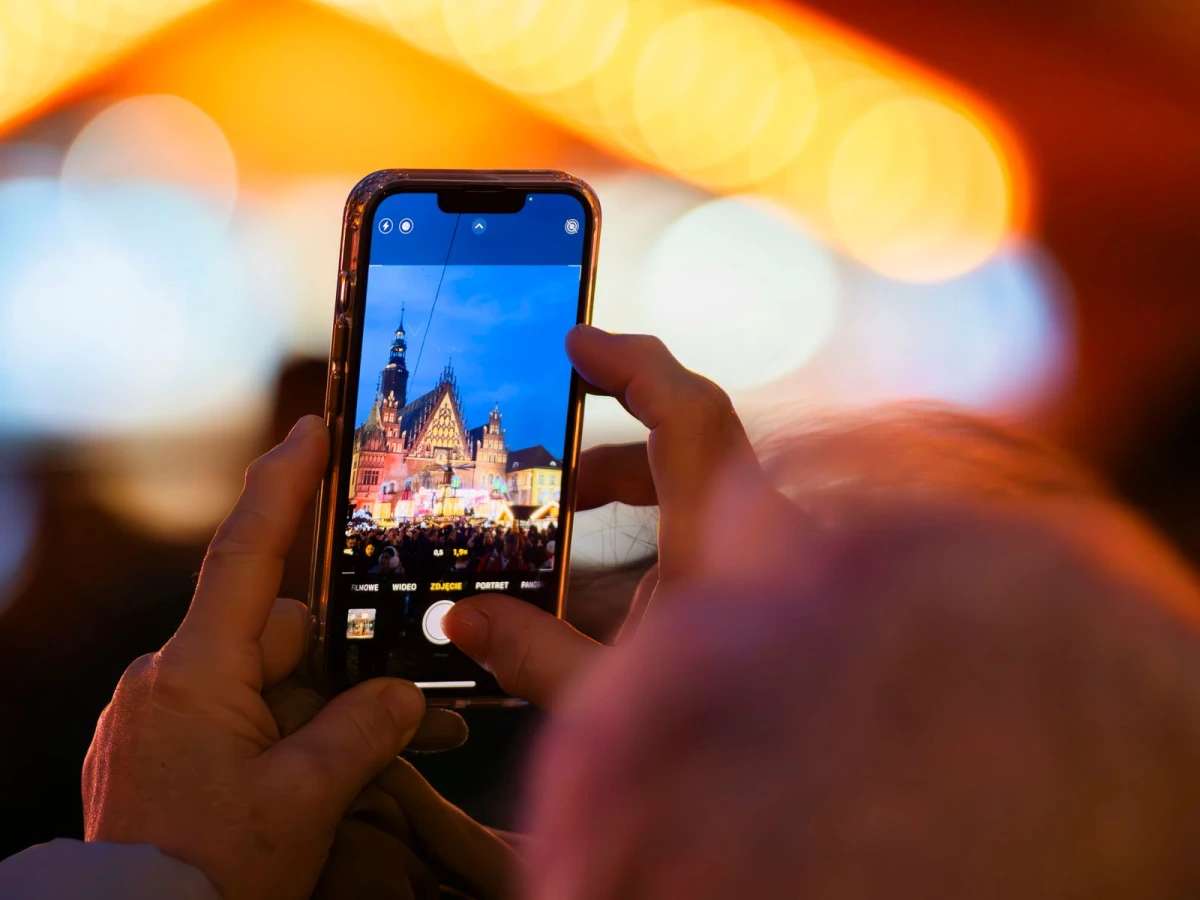
Table of contents
You are standing at a crowded holiday market, phone in hand, typing your passcode to pay for hot chocolate. Someone behind you watches the six digits. Ten minutes later your phone is gone from your coat pocket, and the person who has it knows exactly how to open it.
That scenario is why Apple and Google rebuilt their stolen phone protection features. The old model assumed a thief would see a locked screen and give up, or wipe the phone and sell it. The newer threat is a thief who knows your passcode and goes after your accounts, your saved passwords and your bank apps. The fixes exist, but several are off by default or hidden three menus deep. This guide covers the settings worth turning on before you head out, plus two that protect your number.
Why Stolen Phone Protection Changed
For years, your passcode was the single key to everything. Know it, and you could change the Apple or Google Account password, turn off tracking, and lock the real owner out within minutes.
Thieves noticed. Figures from the Metropolitan Police show London recorded 81,365 phone thefts in 2024. A crackdown brought that down to 71,391 in 2025, which the Met's commissioner described as 10,000 fewer victims, but that is still nearly 200 thefts a day. The phone is often the least valuable thing taken. What hurts is the access: email, payment apps and the text codes that reset everything else.
Apple puts its goal plainly. Stolen Device Protection exists to make it harder for a thief who knows your passcode to make critical changes. Google's Identity Check works the same way on Android. Both rely on one idea: your face or fingerprint is much harder to steal than six digits.
iPhone: Turn On Stolen Device Protection
Apple's support page lists what changes once it's on. Away from familiar places like home or work:
- Face ID or Touch ID only, no passcode fallback, for saved passwords and passkeys, Safari payment cards, turning off Lost Mode, erasing the phone, and setting up or transferring an eSIM.
- A one-hour security delay, followed by a second Face ID or Touch ID check, before anyone can change your Apple Account password, sign out, change your passcode, add a new face or fingerprint, or turn the feature off.
To turn it on, open Settings, tap Face ID & Passcode, enter your passcode, and switch on Stolen Device Protection. Apple says it needs iOS 17.3 or later, two-factor authentication, Face ID or Touch ID, Find My, and Significant Locations turned on. It may already be on, but check.
One extra setting is worth a look. You can set the security delay to apply always, not just away from familiar places. That closes a gap if a thief steals your phone near your home.
Android: Three Locks and an Identity Check
Google groups its tools in one place: Settings, then Google, then All services, then Theft protection. Samsung and other makers may use different menu names. Google's help page describes four features.
Theft Detection Lock
Uses the phone's motion sensors, Wi-Fi and Bluetooth to spot the grab-and-run motion of a snatch, then locks the screen. Google notes it won't fire while the screen is already locked, and may not trigger while you are on a stable Wi-Fi or Bluetooth connection.
Offline Device Lock
Locks the screen if the phone goes offline for a short time while in use, which stops a thief from killing the connection to dodge tracking. It can lock twice in 24 hours.
Remote Lock
Lets you lock the phone from any browser by entering your phone number at Android's lock page. It needs an active SIM, a verified number and Find Hub turned on, and also works twice in 24 hours. Set it up now, because you can't verify your number after the phone is gone.
Identity Check
Google's answer to Stolen Device Protection. Outside trusted places, it requires your fingerprint or face to change the screen lock, factory reset, turn off Find Hub, or change your Google Account password. It appears only on phones with strong biometric sensors, so if you don't see it, your phone doesn't support it.
The Two Settings Most Guides Skip
Phone-level locks protect the device. These two protect the phone number, which is the key to your other accounts.
- Set a SIM PIN. Without one, a thief can pop out a physical SIM and use it in another phone to receive your text verification codes. Apple's support page says to start with your carrier's default PIN, then set your own. It also warns: never guess a SIM PIN or the carrier's backup code, called a PUK. Too many wrong tries can lock the SIM permanently, and you will need a new SIM or eSIM from the carrier.
- Lock your carrier account. Ask your carrier for a port-out PIN or number lock, so nobody can move your number to another provider without it. US carriers now have to offer stronger protections, covered in our guide to the new SIM swap protection rules.
While you're at it, move important accounts away from text codes where you can. A thief holding your phone can read your texts. Our explainer on how passkeys are replacing passwords shows a sign-in method that a stolen passcode alone can't use.
Worked Example: The First 60 Minutes After a Theft
Take two iPhone owners whose phones are stolen at 7:00 p.m. by someone who watched them type their passcodes.
Without Stolen Device Protection
- 7:05 p.m. The thief opens the phone with the passcode and changes the Apple Account password.
- 7:08 p.m. Find My is off. The owner can no longer locate, lock or erase the phone.
- 7:15 p.m. Saved passwords open email and a payment app. Reset codes arrive by text, on the stolen phone.
With Stolen Device Protection
- 7:05 p.m. The thief tries to change the Apple Account password. The phone demands Face ID, then starts a one-hour delay.
- 7:06 p.m. Saved passwords won't open without the owner's face.
- 7:20 p.m. The owner signs in to Find My from a friend's phone and marks the iPhone as lost. The thief's hour never finishes.
The difference is not the phone. It is a 60-minute window that belongs to the owner instead of the thief. That window is what these settings buy you.
If It Happens: Do These in Order
- Mark the phone as lost in Find My or Find Hub, or use Android's remote lock page.
- Call your carrier to suspend the line, so the SIM can't receive your codes.
- Change your main email and account passwords from another device, and sign out other sessions.
- Call your bank to freeze cards in your digital wallet.
- Erase the phone remotely once you're sure it won't be recovered, and report it to the police.
Do it tonight: the whole setup takes a few minutes. None of these features can be switched on after the phone is gone.
Related reading: How to Transfer an eSIM to a New Phone.
Frequently Asked Questions
Should I turn on Stolen Device Protection on my iPhone?
Yes, for most people. It adds a one-hour delay and a Face ID or Touch ID check before anyone can change your Apple Account password or passcode away from familiar places. Apple Pay still works with your passcode.
How do I turn on theft protection on Android?
Open Settings, then Google, then All services, then Theft protection. Turn on Theft Detection Lock, Offline Device Lock and Remote Lock, plus Identity Check if your phone supports it. Menu names vary by maker.
Does a SIM PIN work with an eSIM?
Apple's guidance covers both SIM cards and eSIMs. Ask your carrier for the default PIN before changing it, and never guess, because too many wrong tries can lock the SIM permanently.
Can a thief turn off Find My if they know my passcode?
Without Stolen Device Protection, yes. With it on, Apple requires Face ID or Touch ID plus a one-hour delay before your Apple Account password can be changed, which keeps Find My under your control.
A Few Minutes Now Beats an Hour of Panic Later
You can't stop every thief from reaching into a pocket. You can make sure the phone they grab is a dead end. Turn on Stolen Device Protection or Android's theft protection, set a SIM PIN, and lock your carrier account.
Then practice the one thing you'll need in a hurry: signing in to Find My or Find Hub from someone else's device. Knowing that path before you need it is the fastest protection of all.
Written by
Nora Whitfield
Technology & Science
Covers technology and science for Quick Trend Insights, with a focus on what new AI tools, consumer hardware and space missions actually change for the people following them.
Related Articles
View all
Lifeline Phone Discount: Keep It if You Lose SNAP
Losing SNAP doesn't have to end your Lifeline phone discount. See the other ways to qualify, the 30-day reporting rules, and how to keep up to $9.25 a month.
How to Transfer an eSIM to a New Phone
Transfer an eSIM to a new phone without losing service: iPhone to iPhone, Android to Android, or switching sides, plus what to do if the direct transfer fails.
SIM Swap Protection: The New Rules Carriers Must Follow
SIM swap protection gets federal teeth in December. See what carriers must now do, how a free account lock stops an attack, and the steps to take today.