
3-2-1 Backup Rule: How to Protect Your Files at Home
The 3-2-1 backup rule keeps your photos and files safe from dead drives, theft and ransomware. What it means, what it costs, and how to set it up at home.
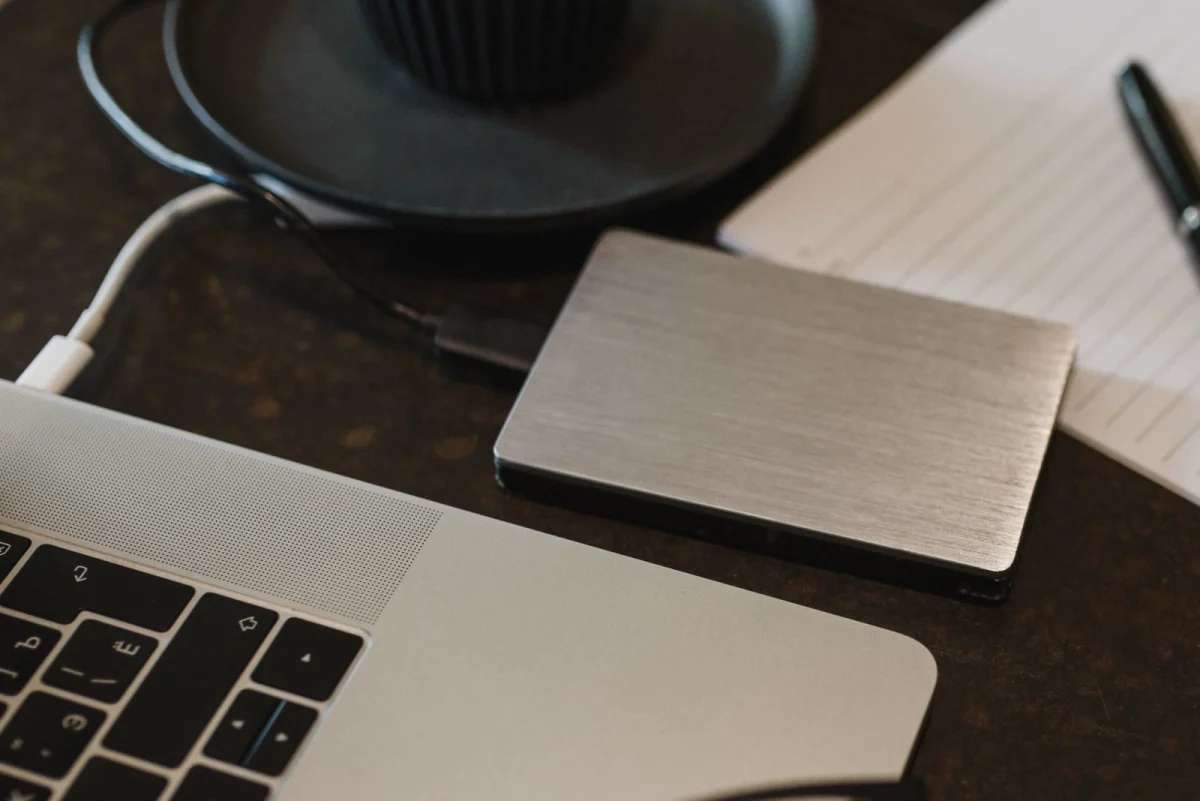
Table of contents
Your laptop slides off the kitchen counter, the screen goes black, and it never boots again. Twelve years of family photos lived on it. You think they are "in the cloud", until you open OneDrive and find only the folders you happened to sync.
The 3-2-1 backup rule exists for exactly this moment. It is a simple formula, used by IT departments and photographers for years, that makes losing your files close to impossible. You can set it up at home for the price of one external drive and a modest yearly subscription.
This guide explains what the rule means, why each number is there, what it costs, and the mistakes that leave people with a backup that fails when they need it.
What the 3-2-1 Backup Rule Actually Says
A paper produced by Carnegie Mellon University for US-CERT, now part of the Cybersecurity and Infrastructure Security Agency, spells the rule out in three lines:
- 3: Keep three copies of any important file, one primary and two backups.
- 2: Keep the files on two different media types, to protect against different hazards.
- 1: Store one copy offsite, outside your home or office.
Each number guards against a different kind of failure. Three copies protect you from a single drive dying. Two media types protect you from a problem that hits one kind of storage, such as a power surge frying everything plugged in at once. The offsite copy protects you from fire, flood and theft, which take every device in the house together.
Why One Backup Is Not Enough
Hard drives fail more often than most people expect. Backblaze, a cloud backup company, publishes failure data on the drives in its data centers. Its report for the second quarter of the year covered 354,415 drives and put the lifetime annualized failure rate at 1.41%.
That sounds small. Spread it over time, though, and it adds up. A drive with a 1.41% yearly failure rate has about a 6.9% chance of failing at some point over five years. One in fourteen. Your home drive also lives a rougher life than a data center drive: it gets knocked, unplugged mid-write and left in hot rooms.
The math behind a second copy
Now add an independent second copy. If each copy fails 1.41% of the time in a year, the chance both fail in the same year is 0.0141 times 0.0141. That is about 0.02%, or roughly 1 in 5,000.
The word "independent" carries the weight there. Two drives on the same desk share the same burglar, the same spilled coffee and the same lightning strike. That is the job of the "1" in 3-2-1: an offsite copy breaks the shared risk.
Sync Is Not Backup
This is where most home setups go wrong. OneDrive, iCloud Drive and Google Drive are sync services. They keep the same files on every device, which is convenient, but it means a mistake or an infection spreads everywhere within seconds.
The US-CERT paper flags the same trap with rolling backups that automatically update to match your current files: they can "silently propagate any corruption or malware" from the original to the backup. Delete a folder by accident, and sync deletes it on every device.
Sync services do keep some history. Microsoft says its Restore your OneDrive feature can roll your files back to a date within the last 30 days, but only with an active Microsoft 365 subscription. If you notice a problem on day 31, that safety net is gone. Storage limits shift too, as our report on the Microsoft 365 Family storage cut shows. And when a cloud service goes down, as in the Microsoft 365 outage that took down Outlook, you cannot reach those files at all.
How to Set Up the 3-2-1 Backup Rule at Home
You need three pieces: the computer you already own, a local backup, and an offsite backup.
Copy one: your computer
This is your primary copy. Before anything else, gather important files into a few known folders, such as Documents, Pictures and Desktop. Scattered files are the ones backups miss.
Copy two: an external drive at home
Buy an external drive at least twice the size of the data you want to protect, so it can hold older versions too. Then let your system run backups for you.
- On a Mac, use Time Machine. Apple says it keeps hourly backups for the past 24 hours, daily backups for the past month, and weekly backups for all previous months, deleting the oldest when the drive fills.
- On Windows, use File History or the backup tool in Settings, pointed at the external drive.
Unplug the drive between backups if you can. A drive that is always connected can be encrypted along with your computer in a ransomware attack.
Copy three: an offsite copy
For most homes, the offsite copy means a cloud computing backup service rather than a sync folder. A true backup service copies your whole set of files and keeps old versions. The US-CERT paper notes the trade-off: the cloud survives disasters at home, but you depend on your internet connection and on the provider's security.
The alternative is a second external drive kept at work or with a relative, swapped every month or so. It costs less but only protects you as far back as the last swap.
What the 3-2-1 Setup Costs: A Worked Example
Say you have 600 GB of photos, documents and videos on a laptop.
- Local copy: a 2 TB external drive gives you room for that 600 GB plus years of older versions. It is a one-time purchase.
- Offsite copy: Backblaze lists its unlimited Personal Backup plan at $99 a year, which works out to about $8.25 a month.
- Over five years: the offsite plan costs $495, plus the drive, which is the price of protecting files you could never buy again.
Compare that with the alternative. Professional data recovery from a dead drive is expensive and comes with no guarantee. It cannot help at all if the laptop was stolen or burned.
Three Mistakes That Quietly Break the Rule
- Backing up to the same drive. A second folder or partition on your laptop's own drive is not a second copy. The US-CERT paper warns that if that internal drive is damaged, stolen or corrupted, you could lose both the primary and backup files.
- Skipping folders. Downloads, a photo app's library or a game save folder often sit outside the defaults. Check the exclusion list once.
- Letting a subscription lapse. When a card expires, some cloud backups stop and later delete your data. Keep the billing email on an address you check.
Test Your Backup Before You Need It
A backup you have never restored is a hope, not a plan. Once a quarter, run a short drill.
- Pick three random files, one old, one recent, one large.
- Restore them from the external drive to a different folder, and open each one.
- Do the same from the cloud backup. Note how long the download takes, so you know what a full restore would involve.
- Check the last backup date on both. If either is weeks old, something has stopped working.
Related reading: Windows 11 24H2 End of Support: Update Your PC Now and Windows 10 Extended Security Updates: Your Free Extra Year.
Frequently Asked Questions
What is the 3-2-1 backup rule?
It means keeping three copies of important files, on two different types of storage, with one copy stored offsite. A laptop, an external drive and a cloud backup service together meet the rule.
Is iCloud or OneDrive a backup?
Not on its own. Both are sync services, so deletions and damage spread to every device. Their version history helps for a limited time, but a separate backup is still needed.
How often should I back up my computer?
Continuously or daily is ideal. Time Machine and cloud backup services run automatically in the background. If you rotate an offsite drive by hand, aim for at least once a month.
Do I need a backup if my files are on an SSD?
Yes. SSDs have no moving parts but can still fail, and they offer no protection against theft, accidental deletion or ransomware. The rule applies to every kind of drive.
Start With the Files You Could Never Replace
You do not need to build the whole system tonight. Plug in an external drive and turn on Time Machine or File History. That gives you two copies by morning. Add the offsite copy this week, and test a restore next month. Then the next dropped laptop is an annoyance, not a loss.
Written by
Nora Whitfield
Technology & Science
Covers technology and science for Quick Trend Insights, with a focus on what new AI tools, consumer hardware and space missions actually change for the people following them.
Related Articles
View all
Password Manager Breach: Is Your Vault Still Safe?
A password manager breach rarely means your vault is gone. What leaked at 1Password and pCloud, why the encryption held, and the 20-minute plan to stay safe.
Malicious Browser Extensions: How to Audit Yours
Malicious browser extensions posing as Google Sheets and Docs tools are reading Gmail. Here is how the new attacks work and a 10-minute audit to clean up.
Laptop Battery Health: How to Check It and When to Replace
Check your laptop battery health in two minutes on Windows or Mac, learn what the numbers mean, and see when a new battery beats buying a whole new laptop.