
Switch From iPhone to Android: What Moves, What Doesn't
Planning to switch from iPhone to Android? What Apple and Google's transfer tools move, what stays behind, and the iMessage step that stops lost texts.
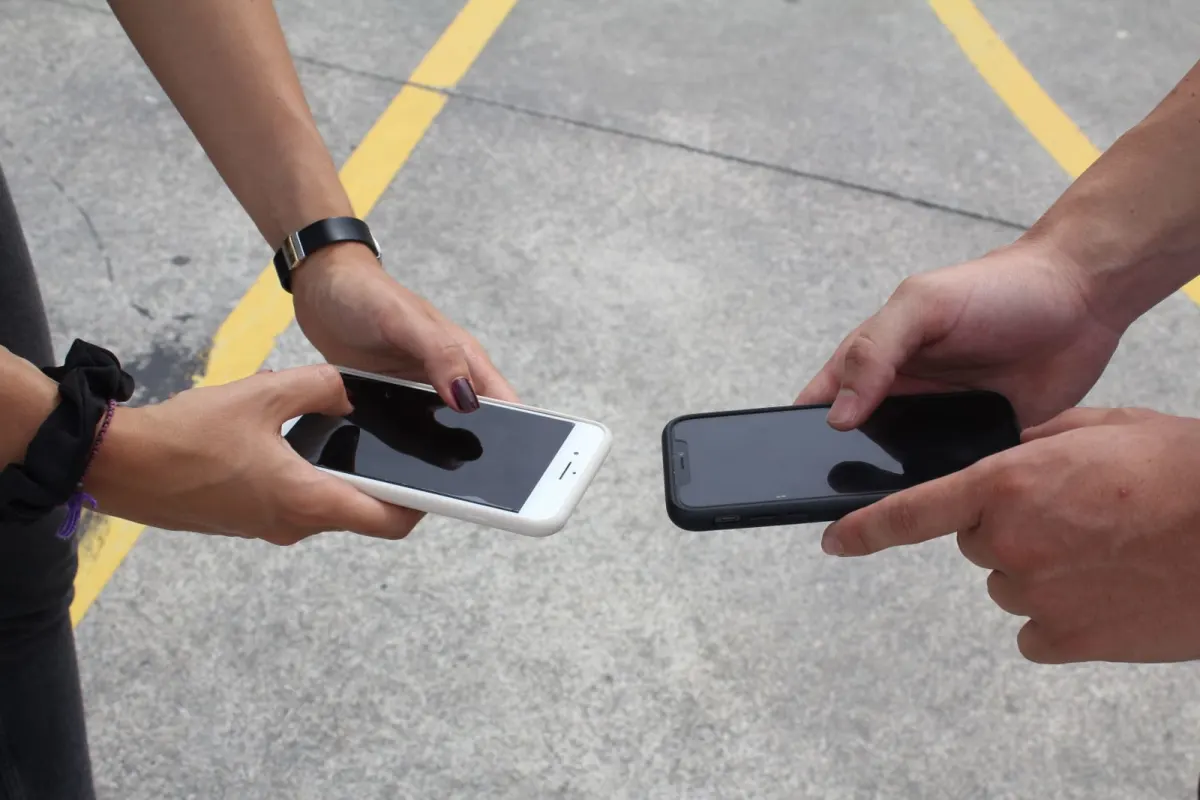
Table of contents
A friend's new Android phone caught your eye, or a Black Friday deal made a Galaxy or Pixel too cheap to ignore. The hardware is the easy part. The worry is everything stored on your iPhone: years of photos, chats, passwords, and that group text with your family. If you want to switch from iPhone to Android, the good news is that both Apple and Google now ship tools built for exactly this move.
The bad news is that neither tool moves everything. Health data stays behind. Paid apps do not carry over. And if you skip one setting on the iPhone, texts from your iPhone friends can quietly vanish. This guide shows what moves, what doesn't, and the order that keeps you from losing anything.
The Two Tools That Move Your Data
For years, switching meant a third-party app and a lot of hope. Now there are two official routes.
Apple's Transfer to Android. Apple added it in iOS 26.3. MacRumors, Tom's Guide and Android Authority all reported the same path: Settings, General, Transfer or Reset iPhone, Transfer to Android. You place the phones side by side, scan a QR code shown on the Android phone (or type a session code), and the transfer runs over Wi-Fi and Bluetooth. The European Commission said the tool was a direct result of the EU's Digital Markets Act, which requires data portability.
Google's setup flow. When you set up a new Android phone and choose to copy from an iPhone, Google offers either a cable connection or a wireless transfer using its Android Switch app on the iPhone. On phones running Android 17, select models get an upgraded process that moves more data. Google lists Pixel 8 and newer, select Galaxy Z Flip 8, Z Fold 8 and S26 FE models, and select Vivo X500 Pro models.
What Moves When You Switch From iPhone to Android
The method you use decides what comes across. Google's support page lays it out in three tiers:
- Wireless with the Android Switch app: contacts, calendars, and photos and videos including albums. That is the lightest option.
- Cable: everything above, plus messages, free apps, music, downloaded files, home screen layout, alarms, notes, voice memos, wallpapers, accessibility settings and WhatsApp history.
- Upgraded process: everything in the cable list, plus call history, all files and folders, passwords and passkeys, Wi-Fi networks, app data where developers allow it, and your eSIM with select carriers.
Google says most transfers take less than 30 minutes, and up to a few hours with a lot of data. Plug both phones in, keep them close together, and stay nearby, because the iPhone may ask for your passcode partway through.
What Stays Behind
This list matters more than the first one. Google's page names four things that do not transfer:
- Health data. Steps, heart rate history and medical records stay in Apple Health. Export what you need first.
- Paid apps and in-app purchases. Free apps reappear from Google Play. Paid ones generally have to be bought again. For subscriptions, Google says to contact the developer.
- Safari bookmarks. Sync them to a browser you will use on Android before you switch.
- Photos stored only in iCloud. If your iPhone uses "Optimize iPhone Storage," many originals live in iCloud, not on the phone. Google says to request those separately.
Apple's own coverage adds a few more: Bluetooth pairings and protected items such as locked notes, according to MacRumors. Your Apple Watch also will not work with an Android phone, so plan for that if you wear one.
A worked example: the iCloud photo gap
Say your iPhone has 128GB of storage, and your iCloud photo library holds 60GB. With storage optimization on, the phone keeps small previews and the full files stay in iCloud. A transfer copies what is on the phone, which can mean low-resolution versions.
Now the space problem. Google says every Google account includes up to 15GB of free storage. That holds a quarter of a 60GB library at most, and the 15GB is shared with Gmail and Drive. So you either pay for more Google storage, keep paying for iCloud, or download the originals to a computer first. Decide before your old phone is wiped, not after. Our guide to how much phone storage you need can help you size the new phone, too.
The iMessage Step You Must Not Skip
This is the classic switching mistake. Your number is registered with iMessage. If you move the SIM without turning that off, iPhone users who text you may still send messages to iMessage, where your Android phone never sees them.
Google's support page says you must turn off iMessage on the iPhone before transferring. Apple's deregistration page gives the steps:
- Keep the SIM in the iPhone and make sure it has cellular data.
- Go to Settings, Apps, Messages, and switch off iMessage.
- Go to Settings, Apps, FaceTime, and switch off FaceTime.
Already switched and missing texts? Apple runs a web page where you enter your number, receive a six-digit code by text on the new phone, and confirm the removal. You can find it by searching for Apple's "deregister iMessage" page.
Your Number, SIM and Group Chats
If you use a physical SIM, move it to the new phone after you turn off iMessage. With an eSIM, the upgraded Google process can move it with select carriers. Otherwise your carrier issues a new eSIM, which our guide on how to transfer an eSIM to a new phone walks through step by step.
Group chats with iPhone users will no longer be iMessage threads. They switch to standard messaging, which on modern phones usually means RCS, with typing indicators and full-size photos. Existing iMessage groups that include you may need to be restarted, so tell the group before you leave. Expect FaceTime calls to stop reaching you as well.
Ask one iPhone friend to send you a test text after the switch. If it arrives as a regular message on the Android phone, your number is free of iMessage. If it never shows up, use Apple's deregistration page and allow time for the change to sync.
A Switching Checklist, in Order
Follow this sequence and you avoid every trap above:
- Export health data you care about from the Health app.
- Download your full photo library from iCloud or confirm the originals are on the phone.
- Move bookmarks and passwords to a browser or password manager that works on both systems, if your new phone does not get the upgraded transfer.
- Turn off iMessage and FaceTime with the SIM still in the iPhone.
- Run the transfer using a cable or the upgraded process for the most data.
- Check your subscriptions. App Store subscriptions are billed by Apple, so cancel any you will replace on Android.
- Keep the old iPhone for a week before you wipe or trade it in, in case something did not come across.
If you have not picked the new phone yet, prices at the low end are moving fast. Our piece on which budget Android phones to buy now covers the options under flagship prices.
Frequently Asked Questions
How do I transfer everything from iPhone to Android?
Use a cable during the Android setup, or Apple's Transfer to Android option in iOS 26.3 and later. Phones with Google's upgraded process on Android 17 move the most, including passwords, call history and Wi-Fi networks.
Will I lose my text messages if I switch from iPhone to Android?
Google says a cable or upgraded transfer moves your messages. To keep receiving new texts from iPhone users, turn off iMessage and FaceTime on the iPhone before you move your SIM.
Does WhatsApp transfer from iPhone to Android?
Yes. Google says the cable method moves WhatsApp history, and the upgraded process offers to copy it after initial setup with a prompt on the new phone.
Can I move my Apple Health data to Android?
Not automatically. Google lists Health data among the items that do not transfer. Export the records you need from the Health app before switching.
Plan the Gaps, Then Make the Move
Switching phones used to be a weekend of lost photos and missing texts. With Apple's Transfer to Android and Google's upgraded setup, the core of your phone comes across in under an hour. The work that remains is the short list of things that do not move: health records, iCloud originals, paid apps and iMessage. Handle those first, keep the old iPhone for a week, and the switch is the easy part.
Written by
Nora Whitfield
Technology & Science
Covers technology and science for Quick Trend Insights, with a focus on what new AI tools, consumer hardware and space missions actually change for the people following them.
Related Articles
View all
Stop Robocalls: What Actually Blocks Them Now
Stop robocalls by stacking the layers that work: the Do Not Call list, free carrier filters, and iPhone or Android call screening. Costs, settings and limits.
Phone Update Bugs: When to Wait and How to Recover
Phone update bugs like November's Pixel camera failure show why timing matters. When to install, how to fix a broken update, and why rollback rarely works.
Android Sideloading Rules: What Changes for Your Phone
Android sideloading rules go global from January. See who is affected, how the 24-hour advanced flow works, the ADB exception, and what to set up first.